
Local Time Machine Snapshots Filling Your Mac
macOS keeps local Time Machine snapshots on the internal SSD. They hide under System Data or Other and can eat tens of gigabytes until you delete them.
- Time Machine
- Snapshots
- Storage
Time Machine is the backup. Local snapshots are the extra copies macOS stores on the same SSD so you can restore a file while the backup disk is unplugged. They are useful on a train. They are also why a laptop can report System Data or Other of 40–80 GB after you thought you deleted a video project.
This is normal on English macOS in the US, UK, EU, Canada, and Australia. The feature is on by default when Time Machine is configured.
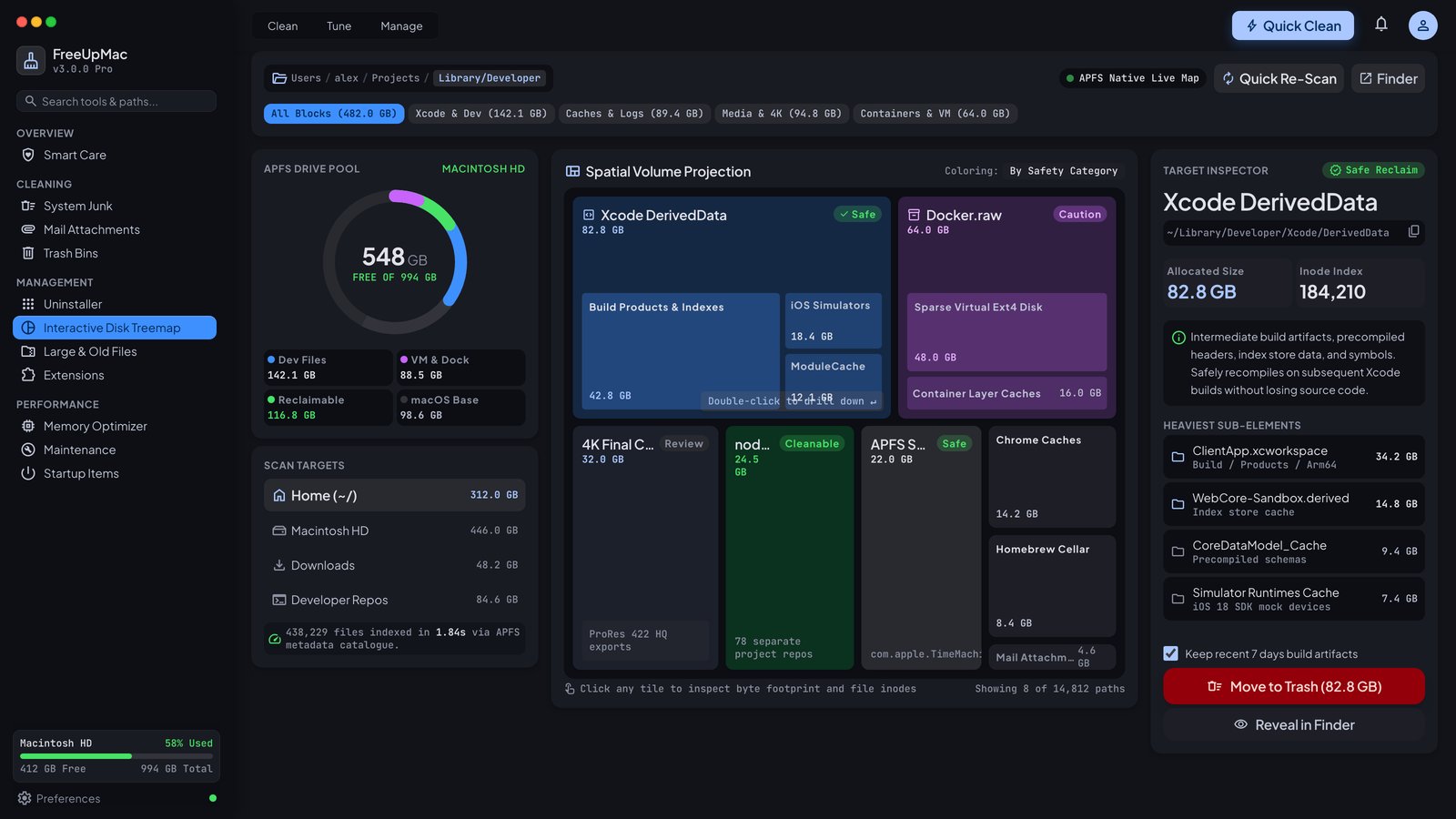
How to tell snapshots are the hog
Symptoms:
- You deleted many gigabytes in Finder, emptied Trash (Bin on UK Macs), and free space barely moved.
- Storage shows a huge System Data / Other slice and small Apps / Photos.
tmutil listlocalsnapshots /prints dates.
Example:
tmutil listlocalsnapshots /
You should see lines like com.apple.TimeMachine.2026-09-12-180000.local. Each snapshot is a point-in-time of files that changed. APFS shares blocks, so the sum of snapshot names is not the same as gigabytes used — but a map still shows a large recoverable chunk.
If Time Machine is off and you never set a backup disk, you may have no local snapshots. Then your grey bar is caches and leftovers, not snapshots.
Why they grow on laptops
Local snapshots shine when the USB drive or Time Capsule is at home and you are not. macOS keeps deleting-and-rewriting space “just in case.” After you import 30 GB of photos, then delete the card dump, the snapshot still holds the dump until it expires or the backup disk is connected.
Apple will purge them under space pressure, but not always fast enough to copy a new file. “Purgeable” in Get Info is often these snapshots.
Safe way to reclaim the space
You will not destroy your external Time Machine history by thinning local snapshots. The backup disk is separate. You only lose the on-laptop restore points until the next backup.
Option A — FreeUpMac Pro
- Scan Home or This Mac.
- Open the Snapshots panel in the inspector.
- Review the list. Delete local snapshots you do not need.
- Empty Trash / Bin if anything was staged there.
This is the point of Pro’s snapshot feature: you see the map and the snapshot list in one native app, without a subscription.
Option B — Terminal
Thin all local snapshots (macOS will recreate them later):
sudo tmutil thinlocalsnapshots / 10000000000 4
Or turn Time Machine off and on in System Settings → General → Time Machine. That is slower and easier to mis-click.
Do not rm folders named .MobileBackups by hand on modern APFS systems. Use tmutil or the app.
When not to delete them
- You have no external backup and you rely on “Yesterday” restore on this Mac. Deleting snapshots removes that undo.
- A backup is running right now. Wait.
- You are about to restore a file you deleted an hour ago. Restore first, then thin.
If you have a working Time Machine disk, thinning locals is usually fine. Connect the disk overnight so a fresh backup exists.
Snapshots vs APFS Time Machine on the same disk
Some people enable Time Machine to the internal disk. That is a different, riskier layout. FreeUpMac targets local snapshots that sit beside a real backup destination. Do not erase your only backup volume from a map.
Interaction with Other / System Data
Settings rarely has a line item named Snapshots. The space is folded into Other or System Data. That is why emptying Downloads does nothing to the grey bar.
After thinning, wait a few minutes or restart before judging Apple’s Storage pane. Rescan in FreeUpMac to see whether the big block is gone.
Laptops that travel
A 256 GB MacBook that leaves the backup disk at home should expect snapshots. Scan monthly. If you also run Docker and Xcode, snapshots plus Docker.raw plus DerivedData will fill the drive together. Fix snapshots first if you recently deleted large files and space did not return.
Price and safety
Listing snapshots is free in spirit with tmutil. Doing it from the map with a confirm dialog is a Pro unlock: $12.99 USD once, pricing, 15-day refund. Deletes of ordinary files still go to Trash / Bin. Snapshot deletion is an OS API, not a Finder recycle bin — read the list before you confirm.
Related: 10-minute storage-full path.
Inherited Macs and migration
Migration Assistant copies snapshot-related state in messy ways. A used Mac from a family member can show huge System Data on day one. List snapshots, thin them, then scan Home. Do not assume the previous owner’s backup disk is still in the building.
“Enter Time Machine” vs local snapshots
The star-field restore UI can browse local snapshots and the backup disk. If the disk is unplugged, you are browsing locals. Thinning locals does not wipe the USB history. If you have never seen a USB disk and Time Machine was never set up, tmutil may print nothing — look at caches instead.
APFS disk space accounting
Snapshots share extents. Deleting one snapshot may free less than you hoped if later snapshots still need those blocks. Delete older snapshots first, or thin with tmutil and let the OS pick. Then rescan. If Docker.raw is the other giant, snapshots are not the whole story.
Portable SSDs
Backing up to a fast SSD you always carry means fewer local snapshots piling up, because the backup destination is often connected. Backing up to a Time Capsule at home means more locals on a travel laptop. Choose the irritation you prefer: carry a disk, or thin snapshots monthly.
FreeUpMac will not disable Time Machine for you. It only lists and deletes local snapshots you confirm. That is the feature, not a replacement for a real backup.
Related guides
What Other Storage on a Mac Actually Means
Other (and System Data) is not a single folder. It is caches, snapshots, iOS backups, and leftover app files Settings will not list. Here is how to open it.
OtherWhat Mac System Data Is and What You Can Delete
System Data is Apple’s grey bar for caches, logs, local Time Machine snapshots, and leftover app files. Here is what is safe to inspect on macOS.
System DataDocker.raw: Why Your Mac Is Full After Prune
docker system prune does not always shrink Docker.raw on macOS. The virtual disk stays large until you compact or reset it. Here is how to see the real size.
Docker