
What Other Storage on a Mac Actually Means
Other (and System Data) is not a single folder. It is caches, snapshots, iOS backups, and leftover app files Settings will not list. Here is how to open it.
- Other
- System Data
- Storage
People search Mac Other storage because Apple used that word for years. Storage settings showed Apps, Photos, Mail, and a mysterious Other slice that refused to shrink. Newer macOS builds often rename the same bucket System Data. The folders inside are still caches, local snapshots, backups, and leftovers.
If your window still says Other — common on older macOS, some locales, and older how-to screenshots — this page is for you. The cleanup is identical to System Data.
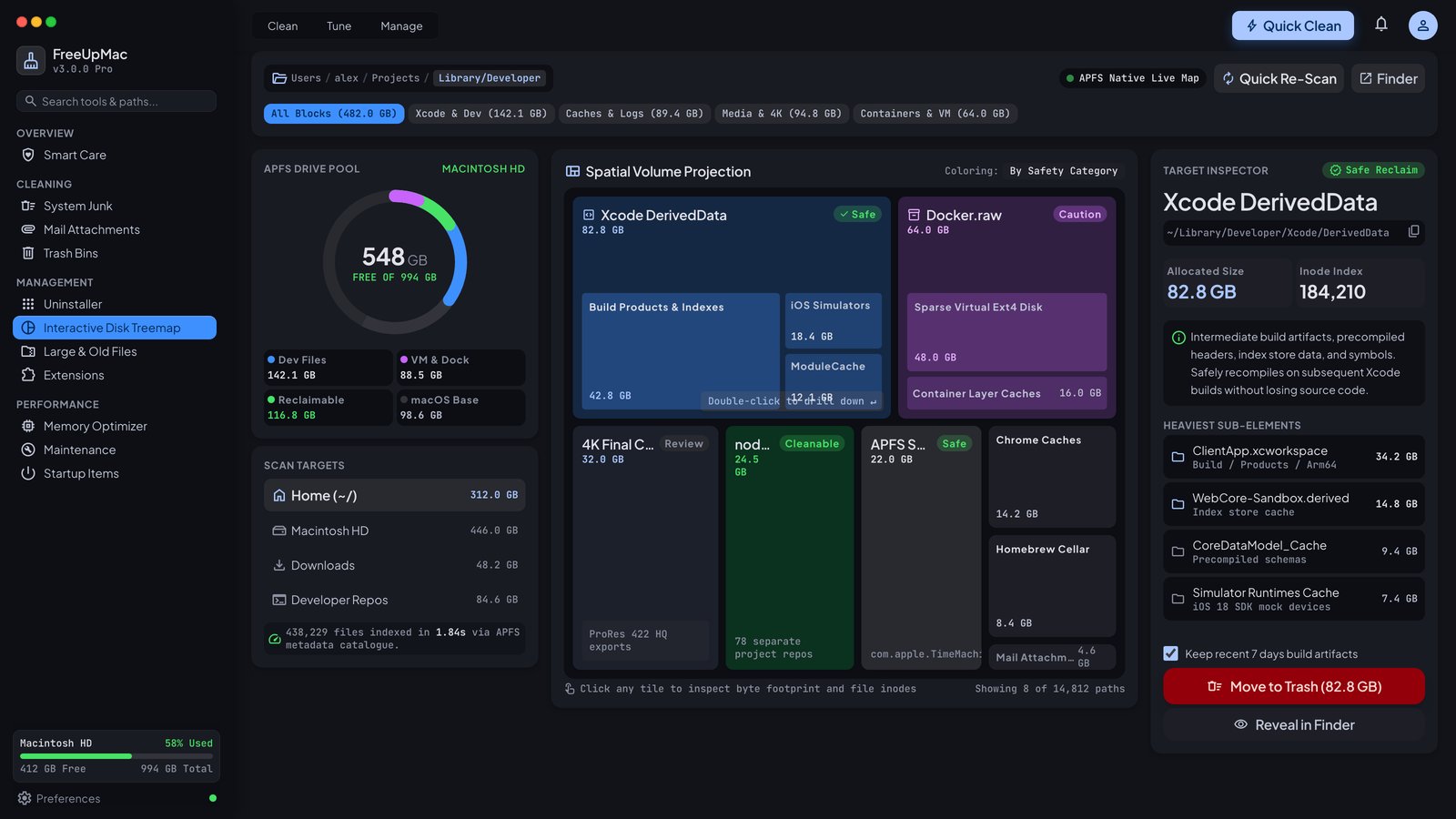
Why Other is a useless label
Apple is grouping “not a named category.” That includes:
- Browser and app caches
- Logs
- Local Time Machine snapshots
- Xcode DerivedData and simulators
- Docker’s virtual disk
- iPhone and iPad backups in Finder
- Support files from deleted apps
- Disk images you never ejected from Downloads
- Mail attachments that are not counted as Mail in some versions
None of that is one directory named Other. You cannot open Other in Finder. You can only open the folders that make it up.
Other vs System vs Recoverable
System (or macOS) is the operating system. Do not delete it to reclaim Other.
Recoverable or purgeable space is APFS being optimistic — local snapshots and caches the system thinks it can drop if you need room. It is not free space you can copy files into until the system actually purges. A map shows the snapshots as real blocks; Settings may call them recoverable and still refuse a 20 GB copy.
Other is everything else Apple does not want to explain in the bar chart.
How to inspect Other without Terminal
- Download FreeUpMac.
- Scan Home. Most Other mass on laptops lives under
~/Library. - If the Other bar is still huge, scan This Mac with Full Disk Access.
- Ignore the Apple label. Trust rectangle size.
- Click the largest block and read the path.
You are looking for a handful of names: Caches, Developer, Containers, MobileSync, Snapshots / .MobileBackups, Application Support, Mail.
The five folders that usually are Other
Caches
~/Library/Caches is almost always Safe after you quit the app. Chrome and development toolchains are the usual giants. Details overlap the storage-full checklist.
Local snapshots
If you use Time Machine, Other grows when you delete files but the backup disk is at home. Snapshot guide.
Developer data
Xcode, Android SDK, Gradle, CocoaPods, npm, pip, Rust targets, and Docker all land in Other / System Data. Developers on 256 GB machines hit the wall first. Start with DerivedData and Docker.raw.
Device backups
~/Library/Application Support/MobileSync/Backup is a classic Other hog. One iPhone can be tens of gigabytes. If iCloud Backup is already on, the local Finder backup may be optional — confirm before you remove it.
Leftover Application Support
Uninstalled Slack, Steam, Adobe, Unity, and Zoom copies leave folders here. Reveal in Finder (Pro) and check the date modified. If the app is gone from Applications and you do not need the data, that folder is Other with a name.
What about “purgeable” that never purges
Copy a large file to the disk. If macOS still says not enough space while Other looks huge, local snapshots or a sparse file (Docker.raw) are holding the blocks. Purgeable is a promise, not a folder. Deleting snapshots or resetting Docker is how you collect that promise. Finder’s Get Info on Docker.raw often under-reports allocated size; the map does not.
Do not use random “Other cleaner” scripts
Scripts that rm -rf /private/var/folders or /System will destroy a Mac. Stick to user-visible paths, quit apps, and send files to Trash (Bin in the UK) so you can restore.
One-click junk scores in subscription suites will also claim to shrink Other. Sometimes they delete caches. Sometimes they delete things you wanted. A map lets you see the block first. Comparison: CleanMyMac and DaisyDisk.
UK, EU, and US Settings wording
Apple’s English strings differ slightly by region and macOS version: Other, System Data, macOS, Documents. The on-disk layout does not. ~/Library is still ~/Library. Trash is Bin in UK Finder; FreeUpMac still puts deletes there.
Recheck the bar
After you empty Trash / Bin, wait. The Storage preference pane is slow. A second scan of Home is a better check than staring at Other. If the biggest blocks are gone on the map, you are done even if Apple’s bar takes a restart to move.
Price if you want in-app delete: $12.99 USD once, cards worldwide, 15-day refund.
Older macOS wording
Monterey and Ventura screenshots on the web still say Other. Sequoia marketing says System Data. Some EU locales mix both in help articles. If a guide tells you to “click Other,” they mean the unnamed slice of the bar — there is still nothing to click. Use a map or du on ~/Library.
Fusion Drive and spinning disks
If you still have a Fusion Drive iMac, Other includes files the system would rather keep on the SSD tier. Deleting caches helps. Defragment folklore does not. Map the Home folder; do not run Windows-style defrag tools on APFS.
iMovie, GarageBand, and Logic
Content packs land in ~/Library/Application Support and in /Library/Application Support. GarageBand sound libraries are easy to forget and easy to re-download. They often appear as Other, not as Apps. If you finished the podcast, remove the pack you can get again from Apple.
“Storage almost full” while Other is 4 GB
Then Other is not your problem. Look at Photos, TV downloads, or iOS backups mis-categorized on that OS version. The map does not care what Apple named the bar. It cares which directory has the blocks.
Work through the 10-minute path if you want a sequence instead of a taxonomy.
Related guides
What Mac System Data Is and What You Can Delete
System Data is Apple’s grey bar for caches, logs, local Time Machine snapshots, and leftover app files. Here is what is safe to inspect on macOS.
System DataLocal Time Machine Snapshots Filling Your Mac
macOS keeps local Time Machine snapshots on the internal SSD. They hide under System Data or Other and can eat tens of gigabytes until you delete them.
Time MachineDocker.raw: Why Your Mac Is Full After Prune
docker system prune does not always shrink Docker.raw on macOS. The virtual disk stays large until you compact or reset it. Here is how to see the real size.
Docker